Web-based Management 2:
Security → User policies
Valid from firmware release 2025.0 - for earlier firmware see WBM: Security - User authentication
On the User policies WBM 2 page, changes can be made for settings that are relevant for the secure access to the device.
Note: Access to the specific pages in the WBM 2 depends on user roles and their rights - see WBM 2: Accessibility for details.
 Please note the guidelines in our PLCnext Technology ‑ Security Info Center.
For developing secure-by-design, IEC 62443‑2 compliant applications with PLCnext Technology, get a good grasp of the concepts used in the Security context.
GENERAL tab
In the Status section, the current status (enabled or disabled) of the user authentication is visible.
In the General configuration section, the user authentication when accessing the device can be generally disabled.
Note: Disabling the user authentication is not possible when working with an active Security Profile or on Secure-by-default devices (e. g., AXC F 1252). In that case, the section containing the button is not displayed at all.
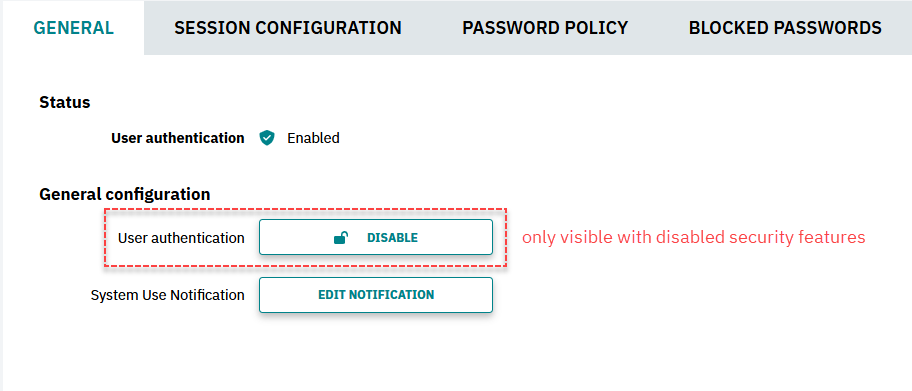
Also in this section the system use notification, can be edited, e. g. for adding or deleting translations. To edit the system use notification, proceed as follows:
- Click the button.
- Edit the text in the input window that opens.
↓ Dialog box for editing the System Use Notification 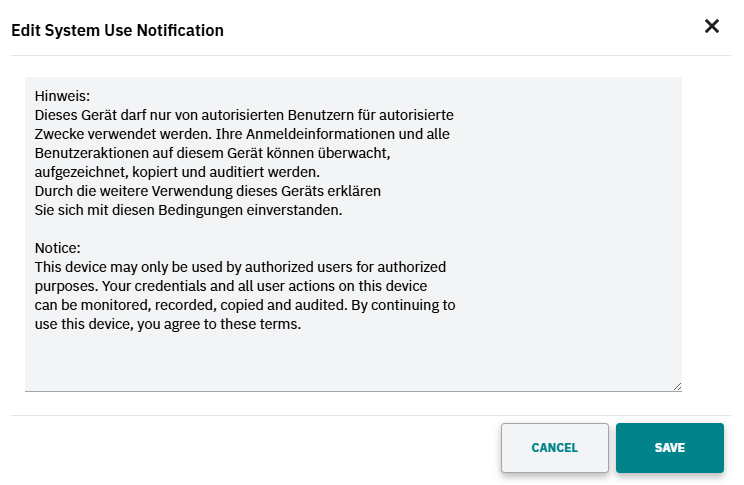
- Confirm the entry by clicking the button.
↪ The text is then transferred to the controller and stored.
SESSION CONFIGURATION tab
In the Session configuration tab, settings for handling sessions in the Web‑based Management can be adapted.
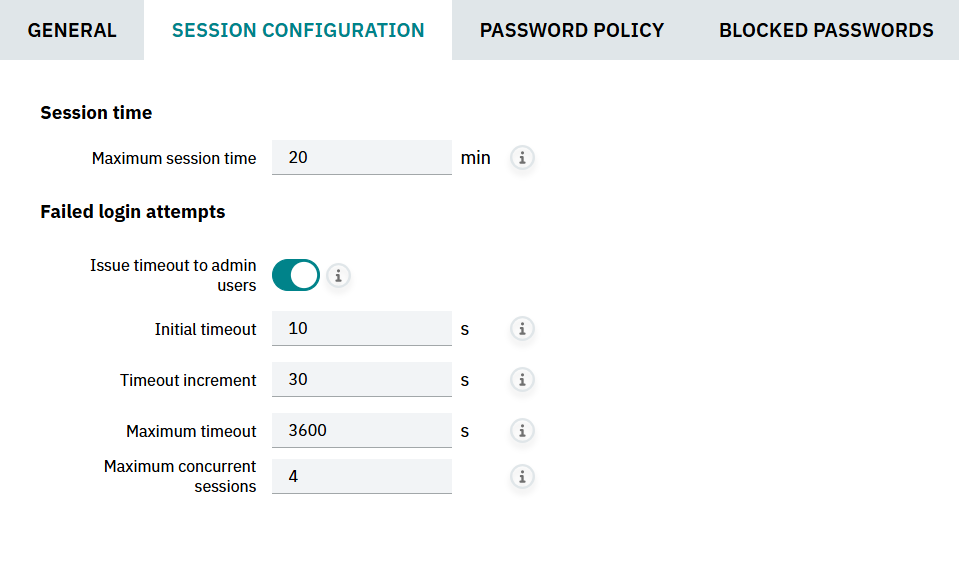
Session time
In the Session time section, the currently set maximum session lifetime in minutes is visible.
- The default setting is 20 min; this default value is active again after activating or deactivating the Security Profile on a device.
- Values from 0 to 127 min can be set, followed by restarting the device.
Security Note When session time is set to 0 (zero) then the session will never expire! Before deactivating the session expiration be sure to perform a proper risk assessment! In the upper-right corner of the Web‑based Management users can always view the current session duration but cannot just expand the session duration.

The counter is only reset by these actions:
- When the user refreshes the browser page containing the Web‑based Management, e.g. by pressing F5 or Ctrl+R keys.
- When the user navigates to a different WBM 2 page in the main menu (left panel).
Security Note Closing the browser window does not terminate a session! Therefore, for leaving the Web‑based Management always log out properly by means of the Logout link in the upper-right corner. When reaching the last 2 min of the current lifetime is reached then a dialog box is displayed. If users click the button, then the timer restarts for another lifetime duration.
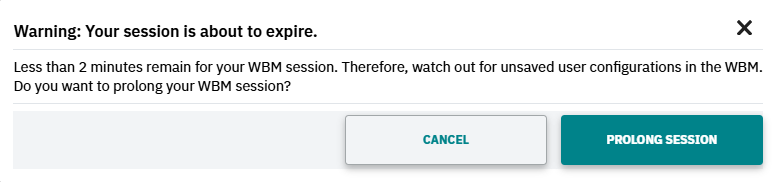
If this dialog is canceled (either by clicking button or by closing the dialog box at the X in the upper-right corner) then the session timer proceeds and the session will end, resulting in skipping back to the start page of the Web‑based Management. Users can then still navigate to the login page for logging in again.
Failed login attempts
In the Failed login attempts section, several settings for a secure login process can be done. For explanations to the respective setting, hovering over the  icon shows the regarding tooltip.
- Issue timeout to admin users
- If the switch is set to active (which is the default with an active Security profile) then also users with elevated permissions are affected from the timeout settings after failed login attempts.
- If the switch is set to inactive (which is the default with an inactive Security profile) then users with elevated permissions are excluded from the timeout settings after failed login attempts. For example, the default
adminuser could retry the login immediately and as often as necessary. This way, a brute-force attack could be successfully executed and the device would be controlled by an unautorized user with highest privileges.
- Initial timeout
Initial timeout penalty on the fourth consecutive failed password attempt in seconds.
Default value: 10. - Timeout increment
Additional timeout penalty on every successive failed password attempt while in timeout, in seconds.
Default value: 30. - Maximum timeout
Maximum possible timeout penalty in seconds (further increments will be ignored).
Default value: 3600 (= 1 h). - Maximum concurrent sessions
Maximum number of user sessions active at the same time.
Default value: 4 with active Security profile, otherwise 32.
Every login attempt is logged and a notification is stored in the security archive on the device. For details see explanations to the Diagnostics → Notifications page of the Web‑based Management.
PASSWORD POLICY tab
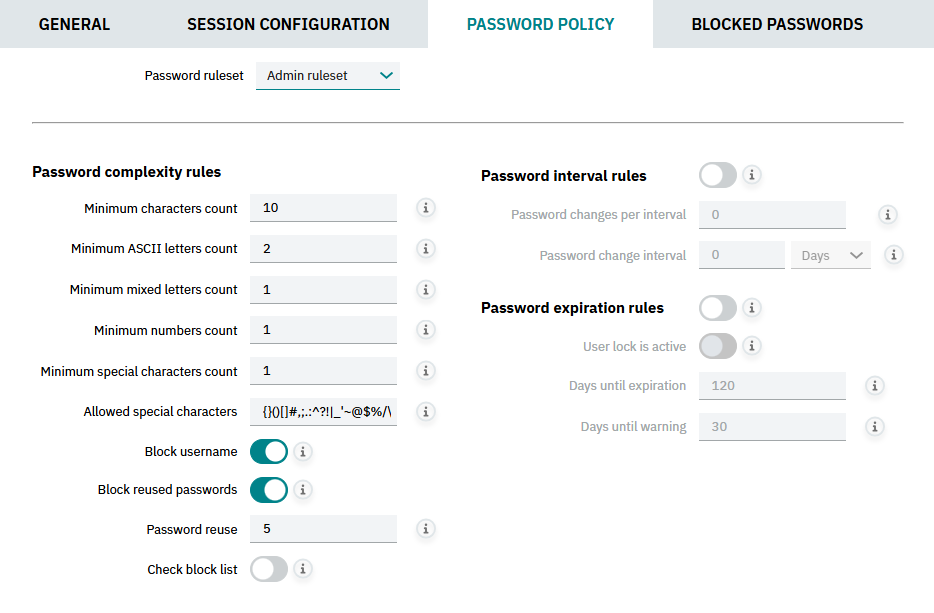
In the Password policy tab, the requirements for secure passwords can be adapted for users with elevated permissions (Admin ruleset) and for general users (Default ruleset). The general requirements and the pre-defined rulesets are also at Password complexity rules. For explanations to the respective setting, hovering over the icon shows the regarding tooltip.
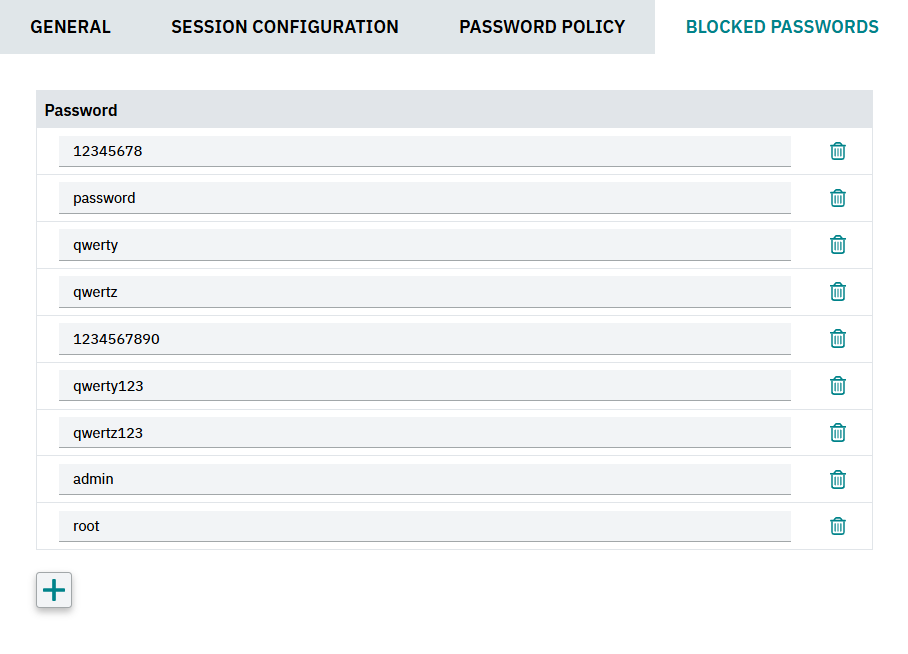
BLOCKED PASSWORDS tab
In the Blocked passwords tab, a small default set of often used poor passwords is provided. It is highly recommended to add more restrictions for poor passwords by clicking the  button below the table.