

Firmware version 2022.0 LTS introduced a gRPC server on AXC F 1152 and AXC F 2152 devices. This gRPC server provides a way for client applications to access RSC services on the PLCnext Control device. The client applications can be:
-
- Written in any language that supports gRPC.
-
- Run anywhere – locally on the PLCnext Control device, or on a remote machine*.
-
- Hosted in an OCI container.
(* remote access will be available at the earliest in firmware version 2024.0 LTS … possibly not until later)
General information on the gRPC server in PLCnext Control devices is available in the PLCnext Technology – Info Center.
This article describes how to create a simple gRPC client application in C#, running on a PLCnext Control device.
Prerequisites
The procedure below uses:
-
- AXC F 2152 running firmware version 2025.6 or later.
-
- PLCnext Engineer version 2025.6 or later.
-
- Visual Studio 2022 (any edition).
-
- The concepts introduced in this Makers Blog post: How to create a simple PLCnext console application in C#
-
- Protobuf definition files for the gRPC server, in the protobuf directory of the PLCnext/gRPC Github repository.
-
- The Device Status RSC service.
-
- The Data Access RSC service.
Procedure
1. Using the System Services page in the Web-based Management, make sure the service named GRPC LOCAL SERVER is activated.
2. Create a new PLCnext Engineer project for your target device. This project should have:
-
- A program with an OUT port variable called AI1, of type INT.
-
- An instance of that program called MainInstance1.
3. Send the PLCnext Engineer project to the target device.
4. In Visual Studio, create, publish, deploy, and test an empty C# console application by following the procedure described in the earlier Makers Blog post.
5. In the Solution Explorer, right-click on the solution, select “Manage NuGet Packages for Solution…”, and install the following NuGet packages:
-
- Grpc.Tools
-
- Grpc.Net.Client
-
- Google.Protobuf
6. Copy the protobuf folder containing the protobuf definition files to the project source folder. Protobuf is the Interface Definition Language (IDL) used to describe gRPC services.
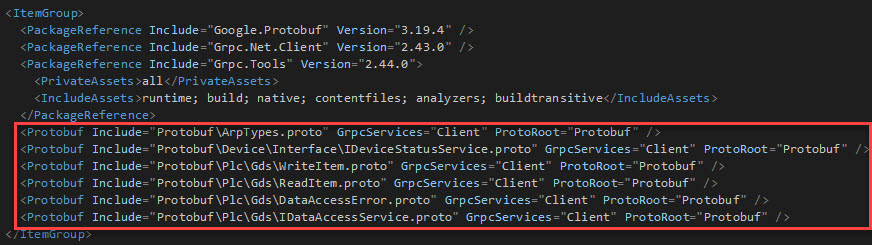
7. In the C# project (.csproj) file, add a reference to the .proto file(s) for the services that will be used in the project. The ItemGroup section of the project configuration will now look something like this:
8. Replace the contents of the project .cs file with this code (you may need to change the namespace name):
using System;
using System.Net;
using System.Net.Http;
using System.Net.Sockets;
using System.Threading;
using System.Threading.Tasks;
using System.IO;
using Grpc.Net.Client;
using Arp.Device.Interface.Services.Grpc;
using Arp.Plc.Gds.Services.Grpc;

namespace ConsoleApp1
{
	class Program
	{
		static void Main()
		{
			// The code to connect to a Unix Domain Socket is from:
			// https://docs.microsoft.com/en-us/aspnet/core/grpc/interprocess?view=aspnetcore-6.0

			var udsEndPoint = new UnixDomainSocketEndPoint("/run/plcnext/grpc.sock");
			var connectionFactory = new UnixDomainSocketConnectionFactory(udsEndPoint);
			var socketsHttpHandler = new SocketsHttpHandler
			{
				ConnectCallback = connectionFactory.ConnectAsync
			};

			// Create a gRPC channel to the PLCnext unix socket
			using var channel = GrpcChannel.ForAddress("http://localhost", new GrpcChannelOptions
			{
				HttpHandler = socketsHttpHandler
			});

			// Create a gRPC client for the Device Status Service on that channel
			var grpc_status_client = new IDeviceStatusService.IDeviceStatusServiceClient(channel);

			// Create a gRPC client for the Data Access Service on that channel
			var grpc_data_client = new IDataAccessService.IDataAccessServiceClient(channel);

			// Create an item to get from the Device Status Service
			// Item identifiers are listed in the PLCnext Info Center:
			// https://www.plcnext.help/te/Service_Components/Remote_Service_Calls_RSC/RSC_device_interface_services.htm#IDeviceStatusService

			var item = new IDeviceStatusServiceGetItemRequest();
			item.Identifier = "Status.Board.Temperature.Centigrade";

			// Create a variable to get from the Data Access Service
			var data = new IDataAccessServiceReadSingleRequest();
			data.PortName = "Arp.Plc.Eclr/MainInstance1.AI1";

			// Response variables
			IDeviceStatusServiceGetItemResponse grpc_status_response;
			IDataAccessServiceReadSingleResponse grpc_data_response;

			// Endless loop
			while (true)
			{
				// Request the item from the Device Status Service
				grpc_status_response = grpc_status_client.GetItem(item);

				// Request data from the Data Access Service
				grpc_data_response = grpc_data_client.ReadSingle(data);

				// Report the results
				var temperature = grpc_status_response.ReturnValue.Int8Value;
				var ai1 = grpc_data_response.ReturnValue.Value.Int16Value;

				Console.WriteLine("Board Temperature = " + temperature + "°C");
				Console.WriteLine("MainInstance1.AI1 = " + ai1);

				// Wait for 1 second
				Thread.Sleep(1000);
			}
		}
	}

	public class UnixDomainSocketConnectionFactory
	{
		private readonly EndPoint _endPoint;

		public UnixDomainSocketConnectionFactory(EndPoint endPoint)
		{
			_endPoint = endPoint;
		}

		public async ValueTask<Stream> ConnectAsync(SocketsHttpConnectionContext _,
			CancellationToken cancellationToken = default)
		{
			var socket = new Socket(AddressFamily.Unix, SocketType.Stream, ProtocolType.Unspecified);

			try
			{
				await socket.ConnectAsync(_endPoint, cancellationToken).ConfigureAwait(false);
				return new NetworkStream(socket, true);
			}
			catch
			{
				socket.Dispose();
				throw;
			}
		}
	}
}
9. Publish and deploy the Console application.
10. Open a shell session on the PLC using (for example, ssh or PuTTY).
11. Make sure that the executable has execute privileges:
$ chmod a+x /opt/plcnext/ConsoleApp1
12. Run the application:
$ /opt/plcnext/ConsoleApp1
The output should be similar to:
Board Temperature = 50°C
MainInstance1.AI1 = 0
Board Temperature = 50°C
MainInstance1.AI1 = 0
Board Temperature = 50°C
MainInstance1.AI1 = 0
Board Temperature = 50°C
MainInstance1.AI1 = 0
13. In PLCnext Engineer, go online and change the value of the AI1 variable.
-> The value reported by the application should change.


Leave a Reply
You must be logged in to post a comment.